How do I quickly schedule shifts using a rotation?
-
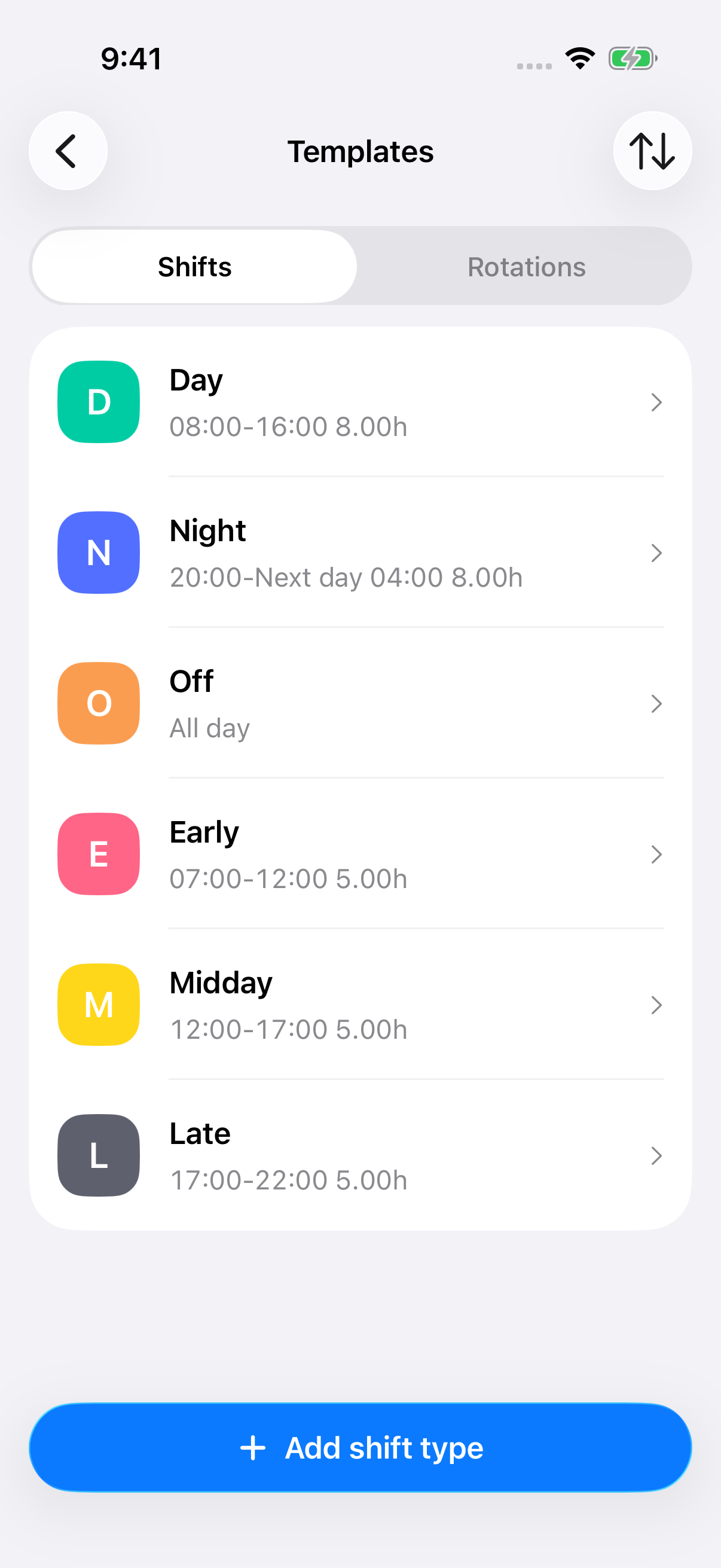
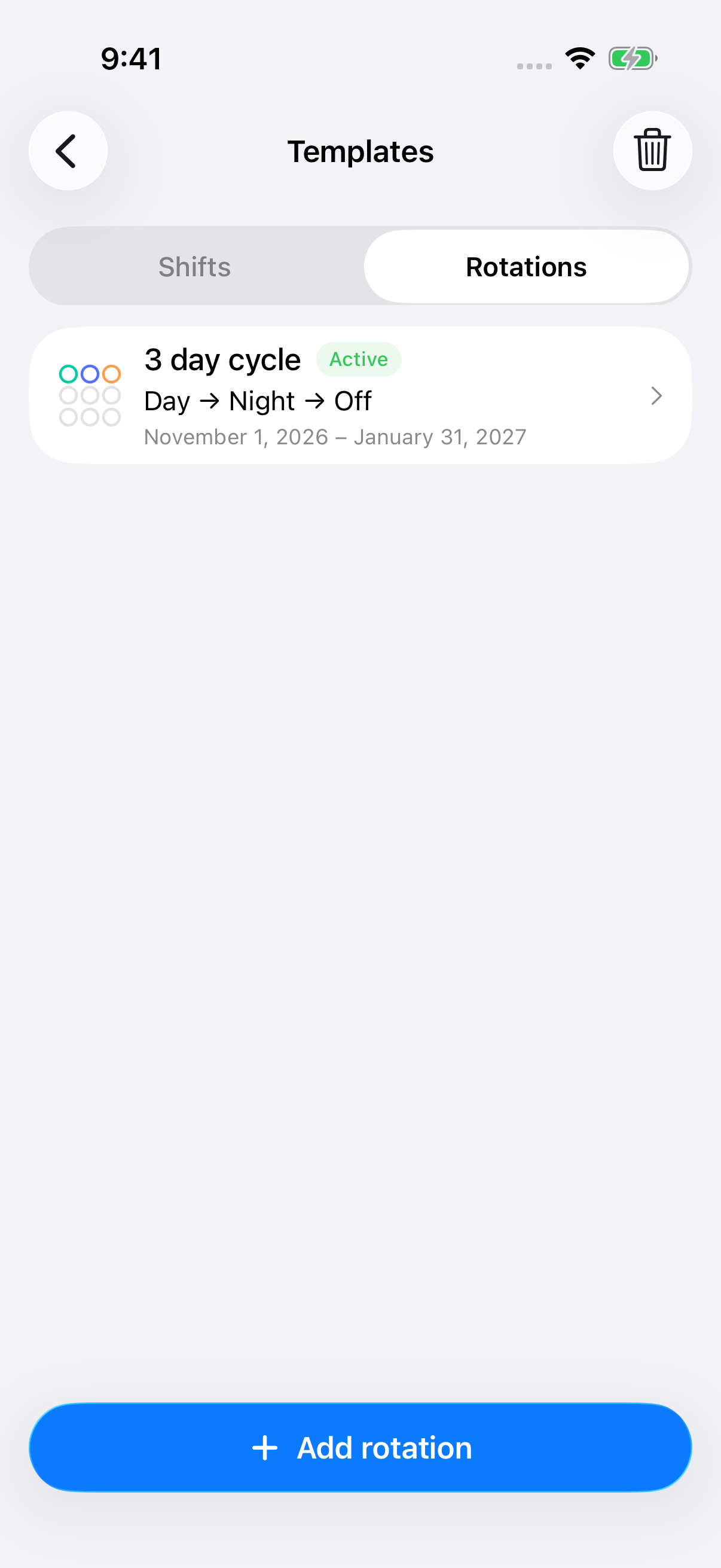
Tap [My] in the bottom tab bar, then open [Templates]. Select [Rotations] at the top and tap [Add rotation] at the bottom.
-
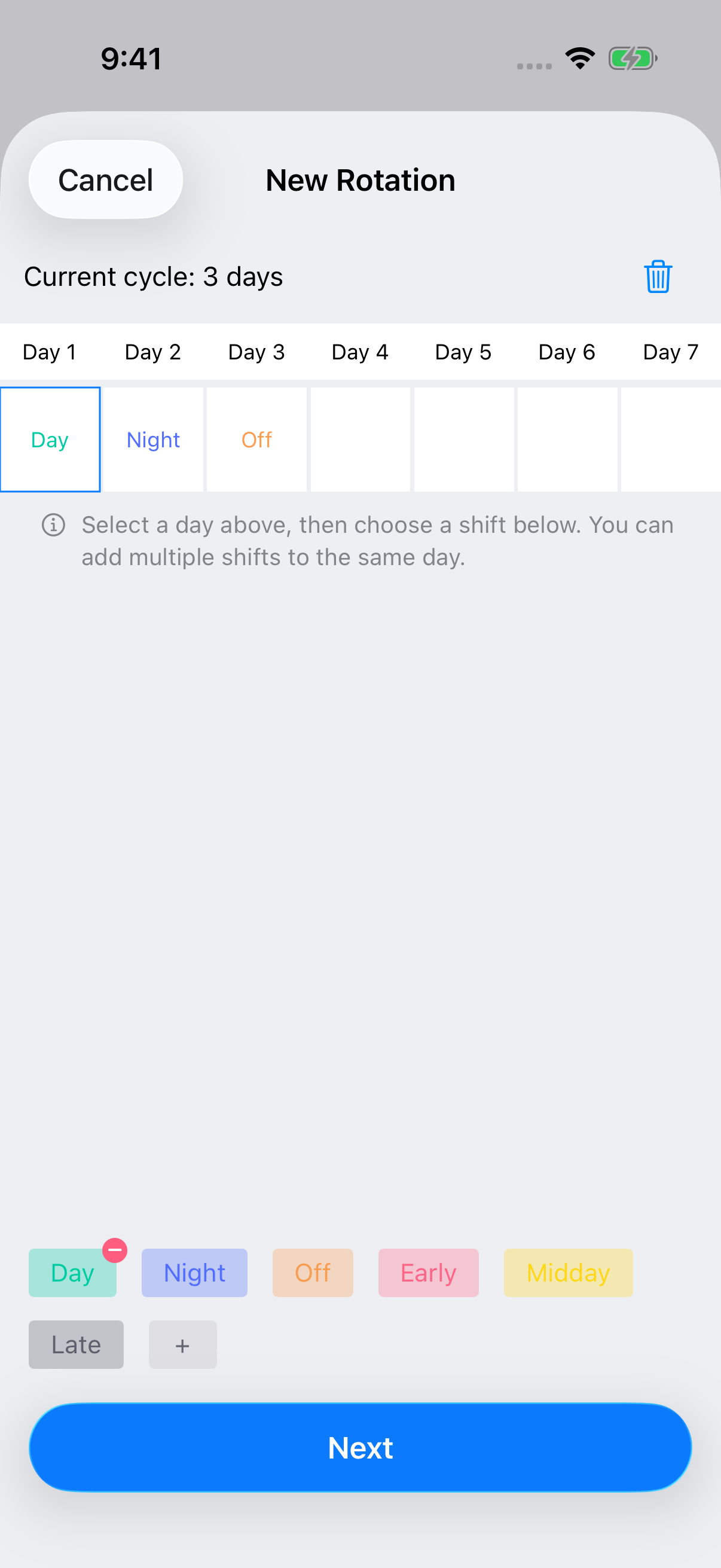
Select Day 1 and choose a shift from the options at the bottom. Repeat for Day 2 and the remaining days to complete the pattern. For example, you can create a three-day pattern of Day, Night, and Off. To assign more than one shift to a day, select that day again and choose an additional shift. Tap [Next] when finished.
-
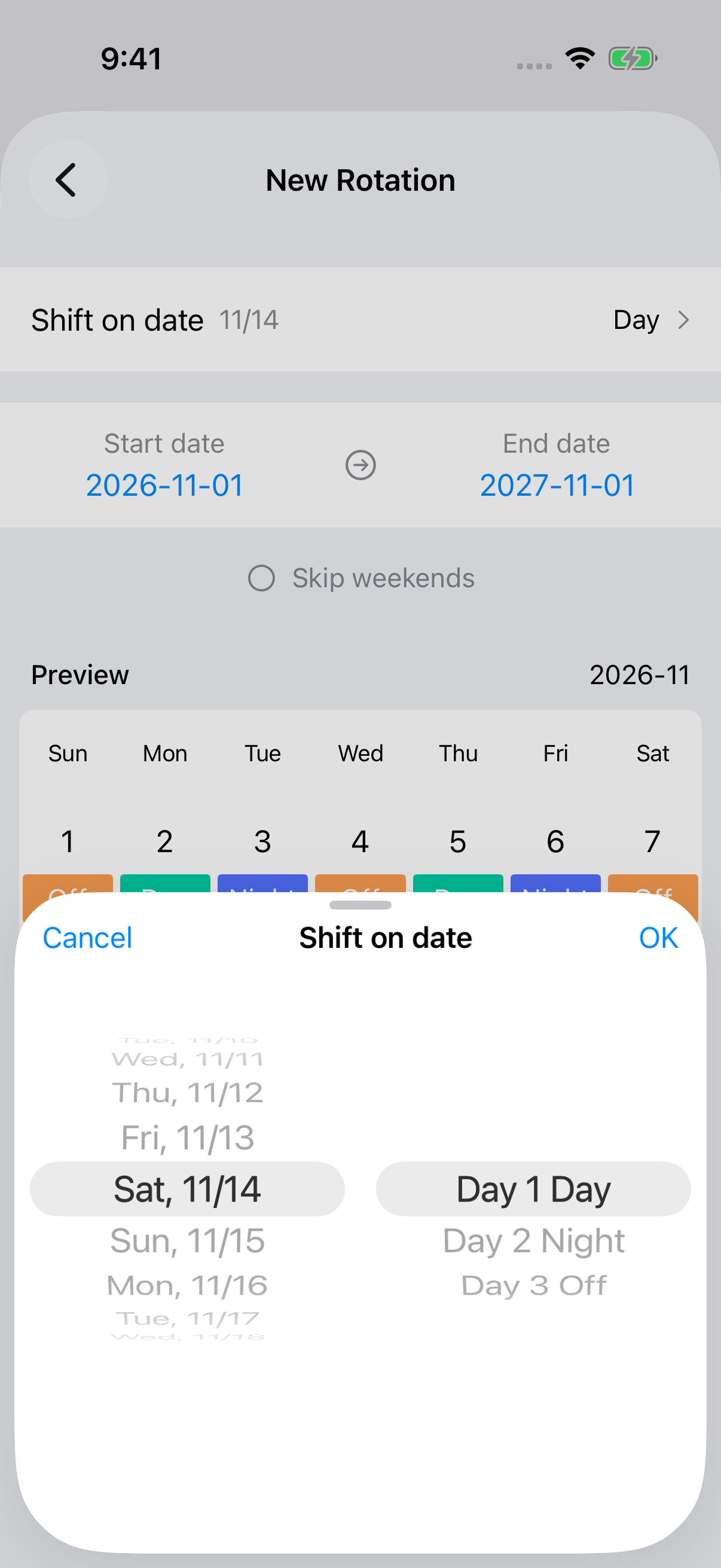
Tap [Shift on date]. Choose a reference date on the left, then select the day in the rotation that applies to that date on the right, such as Day 1 with the Day shift. Tap [OK] to confirm.
-
Set the start and end dates, and choose whether to skip weekends. If [Skip holidays] is available, you can also choose whether to skip holidays. Review the schedule preview below.
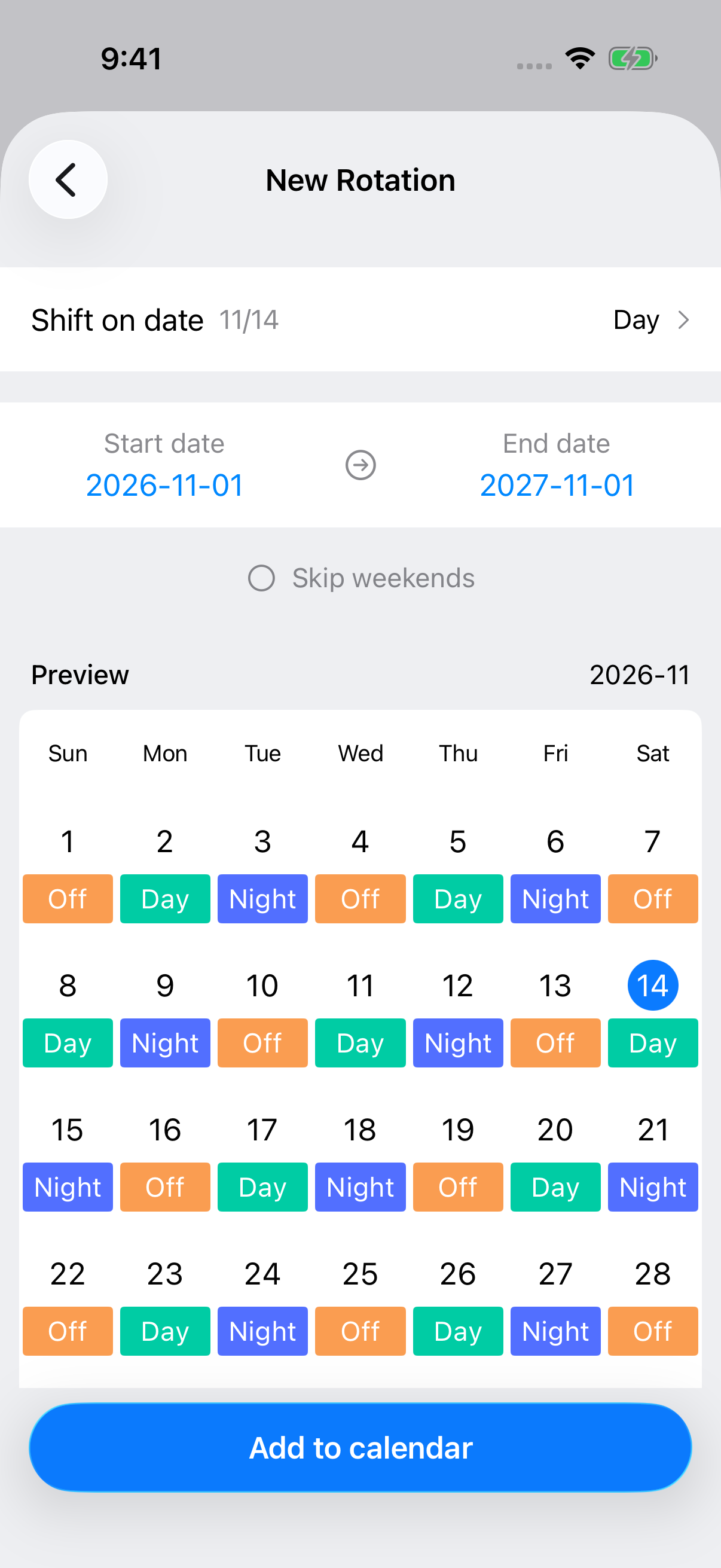
-
Once the preview shows the schedule you want, tap [Add to calendar] at the bottom.